


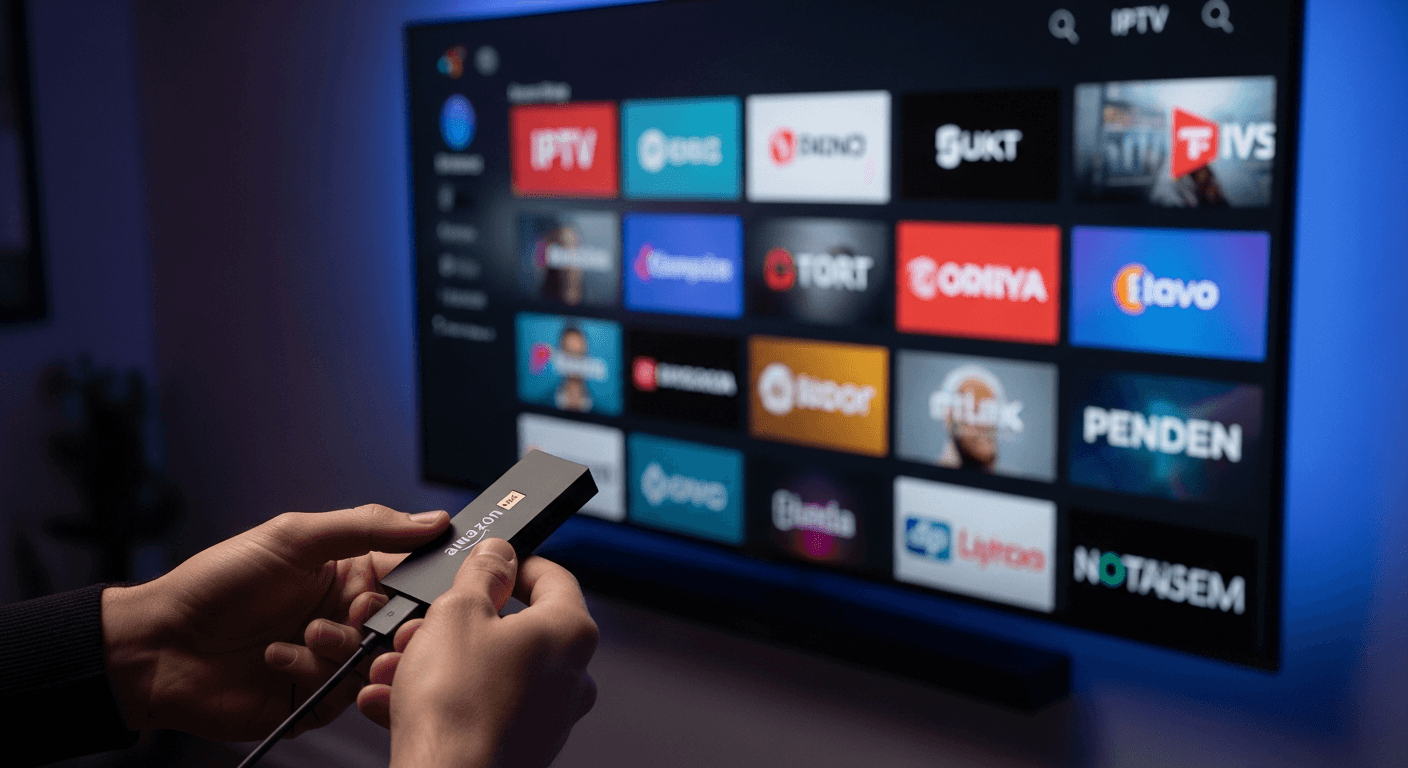
How to Set Up IPTV on Firestick 4K Max (2026)
Setting up IPTV on the Amazon Firestick 4K Max is straightforward once you know the exact steps - and the 4K Max is genuinely the best Firestick for IPTV in 2026. With Wi-Fi 6E, 2GB RAM, AV1 hardware decoding, and Dolby Vision support, it handles 4K IPTV streams without the buffering issues that plagued older Fire TV sticks. We ran this walkthrough hands-on using a Firestick 4K Max (3rd gen, 2023 model) running Fire OS 8 with IPTV Smarters Pro v3.1. The entire process from unboxing to live TV takes under 15 minutes. See the Amazon Fire TV official page for the latest Firestick 4K Max specs and pricing before you start.
In This Guide
What You Need Before Starting
Have these ready before powering on the Firestick 4K Max - skipping any of these will slow you down mid-setup.
- Amazon Firestick 4K Max (3rd Gen) - plugged into your TV's HDMI port with the included USB-C power adapter. Do not use the TV's USB port to power it - it does not supply enough current and will cause random crashes during streams.
- Amazon account - required to complete initial Fire TV setup and to download the Downloader app from the Amazon App Store.
- Wi-Fi password - the Firestick 4K Max supports Wi-Fi 6E (6 GHz band). If your router supports it, connect to 6 GHz for the best IPTV performance. Otherwise, 5 GHz is fine.
- Active IPTV subscription - with either an M3U playlist URL or Xtream Codes credentials (username, password, server URL). Your provider sends these by email after purchase.
- IPTV app choice - IPTV Smarters Pro and TiviMate are the two best options for Firestick 4K Max. Both support Xtream Codes and M3U. TiviMate has a better EPG; Smarters Pro is free. This guide uses IPTV Smarters Pro as the primary example.
If you have not yet decided which IPTV player to use, see our comparison of the best IPTV apps for Firestick in 2026 before continuing.
How to Set Up IPTV on Amazon Firestick 4K Max - Step by Step
IPTV apps are not available in the Amazon App Store, so you need to sideload them as APK files. The Firestick 4K Max supports this natively - no jailbreaking required. Follow these steps exactly.
Step 1: Complete Initial Fire TV Setup
Plug the Firestick 4K Max into your TV's HDMI port and connect the USB-C power adapter to a wall outlet. Switch your TV input to the correct HDMI port. Follow the on-screen prompts to connect to Wi-Fi and sign into your Amazon account. Skip any app download suggestions - you will come back to those later.
Step 2: Enable Developer Options
From the Fire TV home screen, press the Menu button (three horizontal lines) on your remote and navigate to Settings › My Fire TV › Developer Options. If Developer Options is not visible under My Fire TV, go to Settings › My Fire TV › About and click on Fire TV seven times rapidly. A toast notification will say "You are now a developer." Go back and Developer Options will appear.
Step 3: Turn On Apps from Unknown Sources
Inside Developer Options, toggle Install Unknown Apps to ON. A warning dialog will appear - press Turn On to confirm. This allows APK files to be installed outside the Amazon App Store. You can turn this back off after installing your IPTV app for added security.
Step 4: Install the Downloader App
Return to the Fire TV home screen. Press the Search icon (magnifying glass) or use the Voice button on your Alexa remote and say "Downloader." Find Downloader by AFTVnews in the search results - it is the orange icon. Install it. Downloader is a free browser/file manager that lets you download APK files directly onto the Firestick using a URL.
Step 5: Download the IPTV App APK
Open Downloader. In the URL field, type the download URL for your IPTV app. For IPTV Smarters Pro, go to iptvsmarters.com on your phone or PC first and find the direct Android APK download link, then enter that URL in Downloader. Alternatively, search for "IPTV Smarters Pro APK" in Downloader's built-in browser. For TiviMate, use the URL from tivimate.app. Press Go and wait for the download to complete - the file is typically 20-40MB and downloads in under 30 seconds on a fast connection.
Step 6: Install the APK
Once the download finishes, Downloader automatically opens an Install prompt. Press Install and wait - installation completes in about 10 seconds. When prompted "Do you want to open the app?", press Open to launch it immediately, or press Done and find it later under Your Apps & Channels. Downloader will also ask if you want to delete the APK file - press Delete to free up storage on your 16GB device.
Step 7: Add Your IPTV Service via Xtream Codes
Open IPTV Smarters Pro. On the welcome screen, select Add New User and choose Login with Xtream Codes API. Enter your provider's Username, Password, and Server URL from your subscription confirmation email. Tap Add User. The app fetches your full channel list, VOD library, and EPG data - this takes 15-60 seconds depending on how many channels your provider offers.
Step 8: Configure Player and EPG Settings
Before you start watching, tweak two settings for the best Firestick 4K Max experience. In IPTV Smarters Pro, go to Settings › Player and select ExoPlayer as the default player - it uses the Firestick 4K Max's hardware AV1 decoder and handles 4K streams with far less CPU usage than the software player. Then go to Settings › EPG and make sure your program guide is enabled if your provider supplies XMLTV data.
Step 9: Pin the App to Your Home Screen
To find IPTV Smarters Pro quickly, go to Your Apps & Channels, find the app, long-press on it, and select Move to front. This pins it to the top row of your Fire TV home screen so it is always one click away. You are now fully set up - select Live TV in Smarters Pro and start streaming.
Best IPTV Apps for Firestick 4K Max
The Firestick 4K Max runs all major Android IPTV apps without modification. Here are the top three worth installing, tested on the device.
IPTV Smarters Pro - Best Free Option
Free to use, supports Xtream Codes, M3U, and Stalker Portal. The interface is clean, catch-up and VOD work out of the box, and ExoPlayer integration gives solid 4K playback on the Firestick 4K Max. The only downside is a basic EPG compared to TiviMate. For most users starting with IPTV, it is the right first choice. See our full IPTV Smarters Pro review for a detailed breakdown.
TiviMate - Best for EPG and Power Users
TiviMate has the best program guide of any IPTV player - it loads EPG data faster, displays a multi-channel grid layout, and lets you record streams with a compatible provider. The Premium version ($4.99/year via Google Play billing) unlocks multiple playlists and advanced catch-up features. It uses slightly more RAM than Smarters Pro, but the Firestick 4K Max's 2GB handles it without issue. If you watch a lot of live TV and want a proper TV guide experience, TiviMate is worth the upgrade.
GSE Smart IPTV - Best for M3U-Only Setups
If your IPTV provider only supplies an M3U URL (no Xtream Codes), GSE Smart IPTV handles long M3U playlists - including lists with 10,000+ channels - better than either Smarters Pro or TiviMate. It is free with an optional Pro upgrade ($2.99) that removes ads. The interface is dated but functional, and it rarely crashes even on large playlists.
Troubleshooting Common Issues
"Install Unknown Apps" toggle is grayed out
This usually means you enabled it for one app but the system shows a per-app toggle now (Fire OS 8 changed this). Go back to Settings › My Fire TV › Developer Options › Install Unknown Apps and look for Downloader in the list. Toggle it ON specifically for Downloader. Each app that installs APKs needs its own toggle enabled.
IPTV Smarters Pro shows "Authentication Failed" on Xtream Codes login
Double-check your Server URL format. It must include the protocol and port: http://server.example.com:8080 - no trailing slash. Also verify that your subscription has not expired and that you are not over the connection limit (most providers allow 1-2 simultaneous streams). If the URL is correct and the subscription is active, contact your provider - some block connections from VPNs.
4K streams buffer but HD channels play fine
The Firestick 4K Max uses Wi-Fi 6E - but only if your router supports it. If your router is Wi-Fi 5 or older, the 4K Max falls back to Wi-Fi 5. Run a speed test (install FAST by Netflix from the App Store) and confirm you are getting at least 25 Mbps. If speeds are low, move the Firestick to a 5 GHz band, or better yet, use the included USB-C to Ethernet adapter for a wired connection. For a complete fix guide, see our article on how to fix IPTV buffering on any device.
App crashes or freezes mid-stream
Fire OS aggressively kills background apps to free memory. Go to Settings › Applications › Manage Installed Applications, find IPTV Smarters Pro, and select Force Stop then Clear Cache. Also check that no other streaming apps are running in the background. If crashes continue on 4K streams specifically, switch from ExoPlayer to MX Player in Smarters Pro settings - it handles problematic codec streams more robustly. You can check the Amazon Fire TV support page for device-specific firmware update notes if issues persist.
Downloader cannot find the APK URL
Some APK hosting URLs expire or move. If a URL fails in Downloader, try using Downloader's built-in browser to navigate directly to the app's official website. For IPTV Smarters Pro, go to iptvsmarters.com and find the Android download link. Alternatively, use the Silk Browser (pre-installed on Firestick) to visit the site and download directly - Fire OS handles the APK install prompt automatically.
✅ Pros
- Wi-Fi 6E eliminates most buffering issues
- AV1 hardware decode - smooth 4K HDR streams
- Full Android APK support via sideload
- 2GB RAM handles all major IPTV apps
- Dolby Vision + Atmos passthrough
❌ Cons
- IPTV apps not in Amazon App Store - sideload required
- Amazon ads and recommendations on home screen
- Fire OS can kill background apps aggressively
- Wi-Fi 6E only useful if you own a Wi-Fi 6E router
- 16GB storage fills up with cached EPG data over time
Smart 4K is the most stable IPTV - watch every match without buffering
3M +1 FREE • 6M +2 FREE • 12M +3 FREE
Offer valid for new subscribers and single-device plans only.