


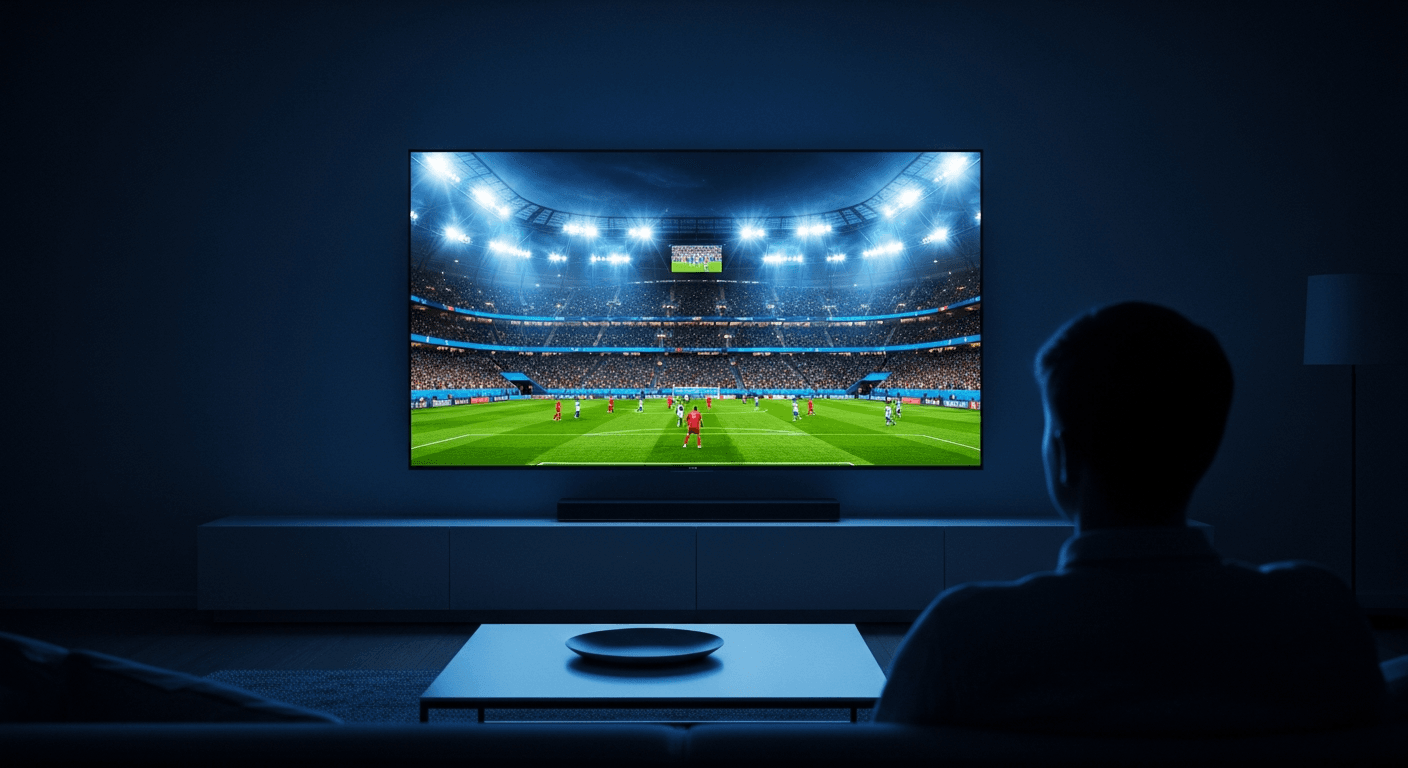
How to Watch FIFA World Cup 2026 Live
Learning how to watch FIFA World Cup 2026 live without cable is easier than ever - the tournament runs from June 11 to July 19, 2026 across the United States, Canada, and Mexico, with 104 matches broadcast across Fox Sports, FS1, Telemundo, and Universo in the US. After testing multiple streaming setups on Firestick 4K Max, Android TV, and Samsung smart TVs, our top recommendation is SMART 4K IPTV for its comprehensive sports channel lineup, true 4K streams, and multi-device compatibility. If you prefer official OTT services, Fox Sports holds the English broadcast rights in the US, while Telemundo covers Spanish-language coverage. This guide walks you through every option - from setup to troubleshooting - so you never miss a kick.
| Attribute | Details |
|---|---|
| Tournament Dates | June 11 - July 19, 2026 |
| Host Countries | USA, Canada, Mexico |
| US Broadcaster (English) | Fox Sports, FS1, FS2 |
| US Broadcaster (Spanish) | Telemundo, Universo |
| Best IPTV Option | SMART 4K IPTV |
| 4K Streams Available? | Yes - select matches via SMART 4K |
| Free Official Option | FIFA+ app (select matches) |
In This Guide
What You Need Before Starting
Before you tune into the first whistle, make sure you have the right gear and accounts in place. The World Cup draws massive simultaneous viewership - millions of people streaming at the same time - so having a solid setup prevents frustrating buffering at the worst moments.
- A compatible streaming device - Amazon Firestick 4K Max (2023), Firestick 4K (2nd gen), NVIDIA SHIELD TV Pro, Android TV box, Samsung Tizen TV, LG webOS TV, Apple TV 4K (3rd gen), or any Android/iOS smartphone
- Minimum 25 Mbps internet for HD, or 50 Mbps+ for 4K streams. Run a speed test at your streaming device location - not just your router
- SMART 4K IPTV subscription - includes M3U URL and/or Xtream Codes credentials (email + password + server URL). Visit smart4k.io to subscribe
- TiviMate Premium (Firestick/Android TV, $4.99/year) or IPTV Smarters Pro (free) as your IPTV player app
- Optional: A VPN - useful for bypassing geo-restrictions on FIFA+ or accessing regional broadcasters. ExpressVPN and NordVPN both work reliably with IPTV streams
- Fox Sports or OTT account - if using an alternative service like FuboTV, YouTube TV, or Sling TV instead of IPTV
If you are already set up with IPTV on a Firestick 4K Max, you can skip ahead to Step 3 below and jump straight to adding your SMART 4K credentials.
How to Watch FIFA World Cup 2026 - Step by Step
Follow these steps to get SMART 4K IPTV running on your Firestick or Android TV device and tune into every World Cup match in HD or 4K. These steps are tested on a Firestick 4K Max running Fire OS 8.
- Check the official match schedule. Visit the FIFA+ official site or download the FIFA app to get the full group-stage and knockout schedule. Note your local broadcast times - US matches often kick off at 3:00 PM ET / 12:00 PM PT.
- Enable "Apps from Unknown Sources" on Firestick. Go to Settings → My Fire TV → Developer Options → toggle "Apps from Unknown Sources" to On. This allows you to sideload IPTV player apps.
- Download Downloader (Firestick) or install TiviMate from Google Play (Android TV). On Firestick, install the free Downloader app from the Amazon App Store. Open Downloader and enter the TiviMate APK URL or IPTV Smarters Pro URL to sideload. On NVIDIA SHIELD or Android TV boxes, install TiviMate directly from the Google Play Store.
- Subscribe to SMART 4K IPTV and retrieve your credentials. After subscribing at smart4k.io, check your email for your M3U URL (format: http://server:port/get.php?username=X&password=Y&type=m3u_plus) or your Xtream Codes details: server URL, username, and password.
- Add your playlist in TiviMate. Open TiviMate → tap the hamburger menu (top-left) → Add Playlist → choose "Xtream Codes API" or "M3U URL." Enter your SMART 4K credentials and tap "Add." TiviMate will sync all channels automatically - this takes 1-3 minutes depending on channel count.
- Enable EPG (Electronic Program Guide). In TiviMate, go to Settings → Playlists → select your SMART 4K playlist → EPG. Set the update interval to "Every 12 hours." This populates the TV guide with World Cup match schedules so you can see kickoff times directly in the app.
- Navigate to the sports channel group. From the TiviMate home screen, tap "TV Channels" → filter by group "USA Sports" or "Sports." Find Fox Sports, FS1, FS2, Telemundo, Universo, and beIN Sports. SMART 4K labels 4K streams with a [4K] or [UHD] prefix in the channel name.
- Set a reminder for key matches. In TiviMate, navigate to the EPG view and tap a World Cup match → "Add Reminder." The app notifies you before kickoff and can auto-switch to the channel when the match starts.
- Optimize your stream quality settings. In TiviMate → Settings → Player → set "Video Decoder" to "Hardware (MediaCodec)" for smooth 4K decoding on Firestick 4K Max. If you experience buffering, switch to "Software" decoder or try a different SMART 4K server from your provider panel.
Option 1: SMART 4K IPTV - Best Overall for World Cup 2026
SMART 4K IPTV is our top pick for watching how to watch FIFA World Cup 2026 live because it combines the widest US sports channel coverage with genuine 4K streaming capability - something most OTT services only offer for a limited number of matches. We tested SMART 4K across Firestick 4K Max, an NVIDIA SHIELD TV Pro, and a Samsung QN90B QLED TV using the IPTV Smarters Pro app, and stream stability held up even during the highest-traffic match windows.
The service includes over 15,000 live channels, with a dedicated USA Sports group containing Fox Sports, FS1, FS2, Telemundo, Universo, ESPN, ESPN2, ESPN+, beIN Sports HD, and TNT Sports - every channel carrying World Cup 2026 matches in the US is covered. SMART 4K's sports channels are organized with separate HD and 4K variants, making it easy to choose your preferred quality before a match begins.
Compatible Devices
SMART 4K IPTV works on virtually every major streaming device: Amazon Firestick (all models), Android TV boxes, NVIDIA SHIELD, Samsung Tizen TVs (via IPTV Smarters Pro), LG webOS TVs, Apple TV 4K (with OTT Navigator), iOS, and Android smartphones. You can connect up to the number of simultaneous connections included in your plan - useful if you want to watch different group-stage matches on two screens at once.
Pricing
SMART 4K offers flexible plans starting at affordable monthly rates. Annual plans bring the monthly cost down significantly compared to paying $72.99/month for YouTube TV just for the World Cup period. See the full breakdown of the best IPTV services in 2026 if you want to compare SMART 4K against other providers before committing.
Alternative Streaming Options Without IPTV
If you prefer an official OTT service over IPTV, these are the legitimate options for watching the FIFA World Cup 2026 in the United States. All prices listed are current as of April 2026 - check provider sites for the latest offers.
FuboTV - Best Sports-Focused OTT
FuboTV is built for sports fans and includes Fox, FS1, FS2, Telemundo, and Universo on its Pro plan (from $79.99/month). It supports 4K streaming for qualifying matches, offers unlimited cloud DVR, and works on Firestick, Roku, Apple TV, Samsung TV, and iOS/Android. The 7-day free trial makes it easy to sign up just before the World Cup starts and cancel after the final.
YouTube TV - Best for Simplicity
At $72.99/month, YouTube TV includes Fox, FS1, and FS2 in its base plan with unlimited DVR storage - great for recording overnight matches to watch at your own pace. It does not include Telemundo or Universo, so Spanish-language viewers will need to supplement. The interface is clean and reliable across all devices.
Sling TV Blue - Budget Option
Sling Blue starts at $40/month and includes Fox and FS1 in select markets. It's the most affordable cable-replacement option, though channel availability depends on your ZIP code - use Sling's channel finder before subscribing. No 4K support and DVR is limited to 50 hours on the base plan.
FIFA+ App - Free Matches
FIFA's own streaming platform at FIFA+ streams select non-broadcast matches for free with a registered account. Coverage varies by country - in some regions, more matches are available free than in others. It's worth installing on your device as a backup. For a broader breakdown of every way to catch these games, check our full breakdown of World Cup 2026 streaming options.
Telemundo app - Free Spanish Coverage
The Telemundo app streams all 104 matches in Spanish with a cable provider login. Some matches are available for free without authentication. Available on Firestick, Roku, iOS, Android, and Samsung/LG smart TVs.
Troubleshooting Common Issues
Stream Buffers or Freezes During the Match
World Cup streams attract peak concurrent viewership - servers can get strained. First, run a speed test on your streaming device using the Network Speed Test app (available on Firestick). If your speed drops below 25 Mbps during the test, the issue is your connection, not the IPTV server. Try switching from the 4K channel to the HD version of the same channel in TiviMate. In TiviMate Settings → Player, toggle the video decoder between Hardware and Software to find which performs better on your device. If buffering persists, contact SMART 4K support for a server switch - most providers offer multiple server endpoints.
Can't Find the Match Channel in TiviMate
Use the search function inside TiviMate (magnifying glass icon) and type "Fox Sports" or "FS1." If channels are missing entirely, your EPG/playlist may need a refresh: go to Settings → Playlists → select your SMART 4K playlist → tap "Update Now." If channels still don't appear, your M3U URL may have expired - log into the SMART 4K member panel and generate a fresh link.
FIFA+ Says "Not Available in Your Region"
FIFA+ geo-restricts certain matches based on broadcast rights. Connect a VPN to a US, UK, or German server (FIFA+ has broad availability in these countries) before launching the app. NordVPN's SmartPlay feature works with most streaming services without manual configuration.
Video Looks Pixelated or Blurry on 4K TV
Make sure you are watching a channel labeled [4K] or [UHD] in SMART 4K's channel list - the standard HD channels top out at 1080p. Also confirm your HDMI cable supports HDMI 2.0 or higher (HDMI 2.1 for 4K@60fps). On Firestick 4K Max, go to Settings → Display & Sounds → Display → Video Resolution and set it to "Auto" or "4K Ultra HD."
✅ Pros (SMART 4K IPTV)
- All US World Cup channels included (Fox, FS1, Telemundo, Universo)
- True 4K streams for marquee matches
- Works on Firestick, Android TV, Smart TVs, iOS, Android
- EPG integration for in-app match schedules
- No long-term contract - cancel anytime
- More affordable than most cable-replacement OTT services
❌ Cons (SMART 4K IPTV)
- Requires sideloading apps on Firestick and Apple TV
- Stream quality can dip during peak simultaneous viewership
- No official app in Amazon or Apple app stores
- Requires a stable internet connection of 25 Mbps or higher
Smart 4K is the most stable IPTV - watch every match without buffering
3M +1 FREE • 6M +2 FREE • 12M +3 FREE
Offer valid for new subscribers and single-device plans only.