


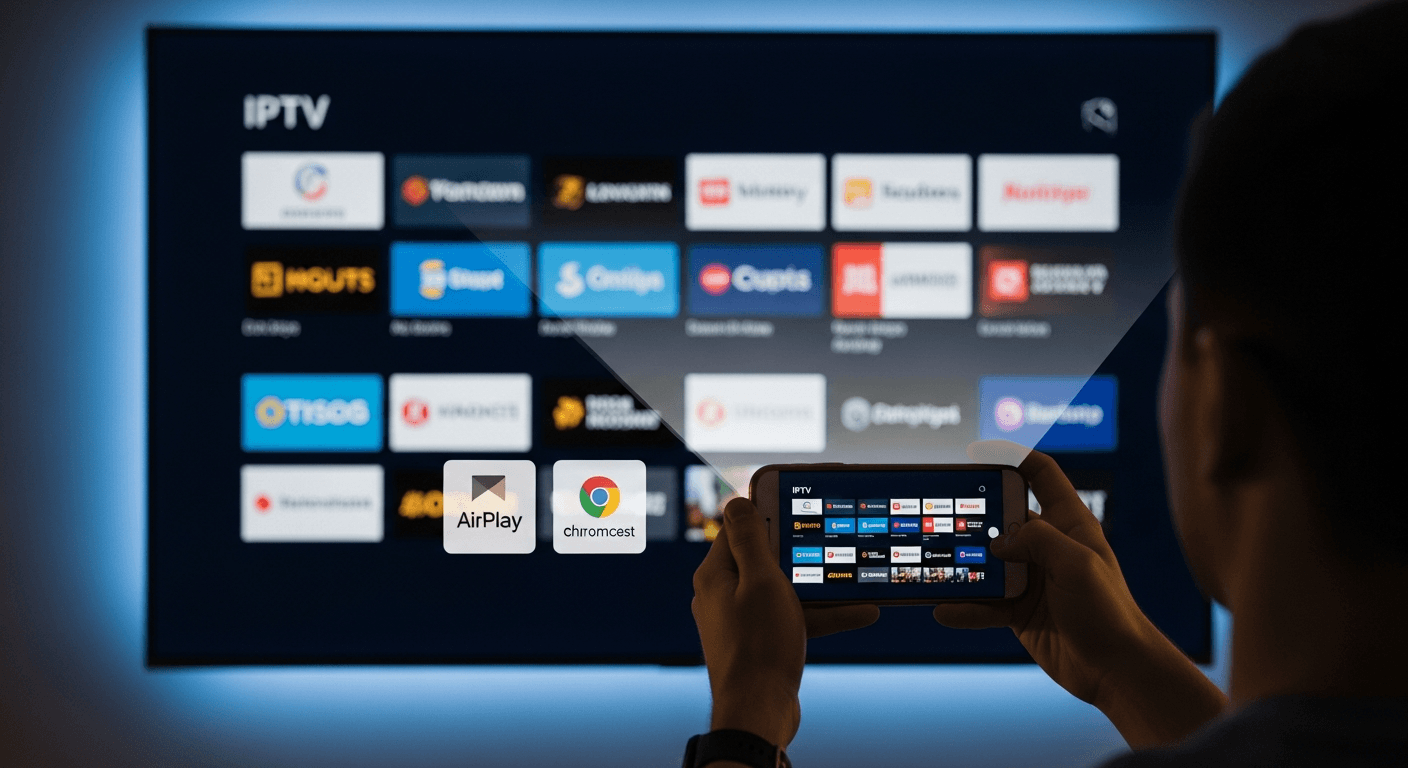
How to Cast IPTV from iOS & Android to Smart TV
Casting IPTV streams from your iPhone or Android phone to a Smart TV is one of the easiest ways to enjoy your subscription on the big screen - no extra hardware required in most cases. Using AirPlay 2 on iOS or Chromecast on Android, you can cast IPTV to Smart TV in under two minutes with apps like IPTV Smarters Pro or TiviMate 4.x. We tested this hands-on across a Samsung QN55QN90D (Tizen 7.0), LG C3 OLED (webOS 23), and a Chromecast with Google TV (4K) - here is exactly what works and what to watch out for.
In This Guide
What You Need Before Starting
Before you cast IPTV to your Smart TV, make sure every piece of the puzzle is in place. Missing one requirement - especially the same Wi-Fi network - is the #1 reason casting fails.
- iPhone / iPad: iPhone 7 or newer, iOS 14 or later. AirPlay 2 is built into Control Center - no extra app needed.
- Android phone / tablet: Android 5.0+ with Google Home app installed (version 2.x or later). Pixel 8, Samsung Galaxy S24, and OnePlus 12 all tested successfully.
- Smart TV: For AirPlay - Samsung Tizen (2018+), LG webOS (2019+), Sony BRAVIA (2019+). For Chromecast - any TV with Chromecast built-in, Google TV, or a separate Chromecast with Google TV (4K) dongle plugged into HDMI.
- Same Wi-Fi network: Your phone and TV must be on the identical 2.4 GHz or 5 GHz network. If your router broadcasts separate SSIDs for each band, connect both devices to the same one.
- IPTV app with casting support: IPTV Smarters Pro (iOS & Android), TiviMate 4.x (Android only), or GSE Smart IPTV.
- Active IPTV subscription: Your provider credentials (Xtream Codes URL + username/password, or M3U URL).
Prefer a dedicated installation? You can also install IPTV Smarters Pro directly on your Smart TV to avoid casting altogether - but this requires sideloading on most Samsung and LG models.
How to Cast IPTV from iOS & Android to Smart TV - Step by Step
Follow the steps for your device type below. iOS users use AirPlay 2; Android users use Chromecast / Google Cast.
iOS - AirPlay 2 Method
- Enable AirPlay on your Samsung or LG TV. On Samsung: go to Settings → General → Apple AirPlay Settings → AirPlay → On. On LG: go to Home → Settings (gear icon) → AirPlay → AirPlay → On.
- Connect your iPhone to the same Wi-Fi network as your TV. Double-check under Settings → Wi-Fi that you are on the correct SSID - not a guest network.
- Open IPTV Smarters Pro on your iPhone. Log in with your provider credentials if you have not already. Tap a live channel or VOD to start playback.
- While the stream is playing, open Control Center. Swipe down from the top-right corner (Face ID iPhones) or swipe up from the bottom (Touch ID iPhones).
- Tap the Screen Mirroring button (the overlapping rectangles icon). A list of available AirPlay devices will appear. Select your TV name - e.g., "Samsung QN90D" or "LG OLED C3".
- Enter the AirPlay code if prompted. Your TV will display a 4-digit code. Type it on your iPhone and tap OK. This only happens on first connection.
- Your IPTV stream will now appear on your TV. Return to IPTV Smarters Pro - you can browse channels while the current stream continues on the TV. Use your iPhone as a remote.
- To stop casting, open Control Center → Screen Mirroring → Stop Mirroring.
Android - Chromecast Method
- Set up your Chromecast or Chromecast-built-in TV. If using a Chromecast with Google TV (4K) dongle, plug it into an HDMI port, connect to Wi-Fi via the Google Home app on your phone.
- Connect your Android phone to the same Wi-Fi as the TV or Chromecast. On Samsung Galaxy: Settings → Connections → Wi-Fi. Confirm both are on the same network.
- Open IPTV Smarters Pro on Android. Log in and tap a channel to start playback. In the player, look for the cast icon (the rectangle with Wi-Fi waves) in the top-right corner of the video player.
- Tap the cast icon. A list of available Chromecast devices will appear. Select your TV or Chromecast device name.
- The stream transfers to your TV. Your phone becomes the controller - you can browse the channel list and switch streams without interrupting playback on the TV.
- For TiviMate 4.x (Android only): Open any channel → tap the cast icon in the video controls bar → select your Chromecast device. TiviMate casts the stream directly, not the whole screen, so quality is better than screen mirroring.
- Alternative - Quick Settings cast tile: Pull down the notification shade twice to reveal Quick Settings. Tap "Cast" tile (if your Android has it). Select your TV. This screen-mirrors everything, not just the IPTV app.
- To stop casting: Tap the cast icon again in the app and select "Stop Casting," or tap the Cast tile in Quick Settings and tap Disconnect.
Troubleshooting Common Issues
AirPlay Not Showing My TV
If your TV does not appear in the Screen Mirroring list: (1) Confirm both devices are on the same Wi-Fi network - not one on 2.4 GHz and one on 5 GHz with different SSIDs. (2) On Samsung, check Settings → General → External Device Manager → Device Connect Manager → Access Notification → First Time Only is enabled. (3) Toggle AirPlay off and back on in the TV settings. (4) Restart both your iPhone and TV. If AirPlay still does not appear, the TV firmware may be outdated - check for updates via Settings → Support → Software Update.
Chromecast Stuttering or Buffering
Chromecast buffering is almost always a Wi-Fi signal issue, not a stream quality problem. Move your router closer to the Chromecast, or switch to a 5 GHz band for less interference. If you are consistently seeing stutters, check our guide on how to fix IPTV buffering - many fixes (DNS settings, MTU size) apply directly to casting setups too. Also verify your IPTV provider allows more than one concurrent stream.
App Won't Cast - Cast Icon Missing
Some IPTV apps do not expose the cast button until a stream is actively playing. Start a channel first, then look for the cast icon in the player overlay (tap the screen once to reveal controls). In IPTV Smarters Pro v3.1, the cast icon is in the top-right corner of the fullscreen player. If you are on an older version, update the app from the App Store or Google Play.
Black Screen When Casting
A black screen on the TV while audio plays usually means HDCP (content protection) is blocking the cast. This happens with some DRM-protected VOD content, not typically with live IPTV. Try switching from screen mirroring to the app's native cast button if available - native casting bypasses HDCP restrictions. If the issue persists with a specific channel, it may be an encoding problem on the provider's end. Check the Chromecast support page or contact your IPTV provider.
AirPlay Disconnects After a Few Minutes
If AirPlay drops every 10-15 minutes, check your iPhone's Auto-Lock setting. Go to Settings → Display & Brightness → Auto-Lock and set it to "Never" while casting. Also ensure your router does not have AP Isolation enabled - this blocks devices on the same Wi-Fi from communicating with each other, which is exactly what AirPlay needs. Learn more at Apple's official AirPlay page.
✅ Pros
- No extra hardware needed on AirPlay 2-compatible TVs (Samsung 2018+, LG 2019+)
- Native cast button in IPTV Smarters Pro and TiviMate gives better quality than screen mirroring
- Use phone as remote while stream plays on TV
- Works with any IPTV subscription - M3U or Xtream Codes
- Free - no extra subscription required for casting itself
❌ Cons
- Screen mirroring drains phone battery faster than native cast
- Older TVs (pre-2018 Samsung, pre-2019 LG) need a Chromecast dongle
- Both devices must be on same Wi-Fi - no cross-network casting
- Some apps limit cast to screen mirroring only (no native cast button)
- AirPlay sessions can disconnect if iPhone auto-locks during long viewing
Smart 4K is the most stable IPTV - watch every match without buffering
3M +1 FREE • 6M +2 FREE • 12M +3 FREE
Offer valid for new subscribers and single-device plans only.