


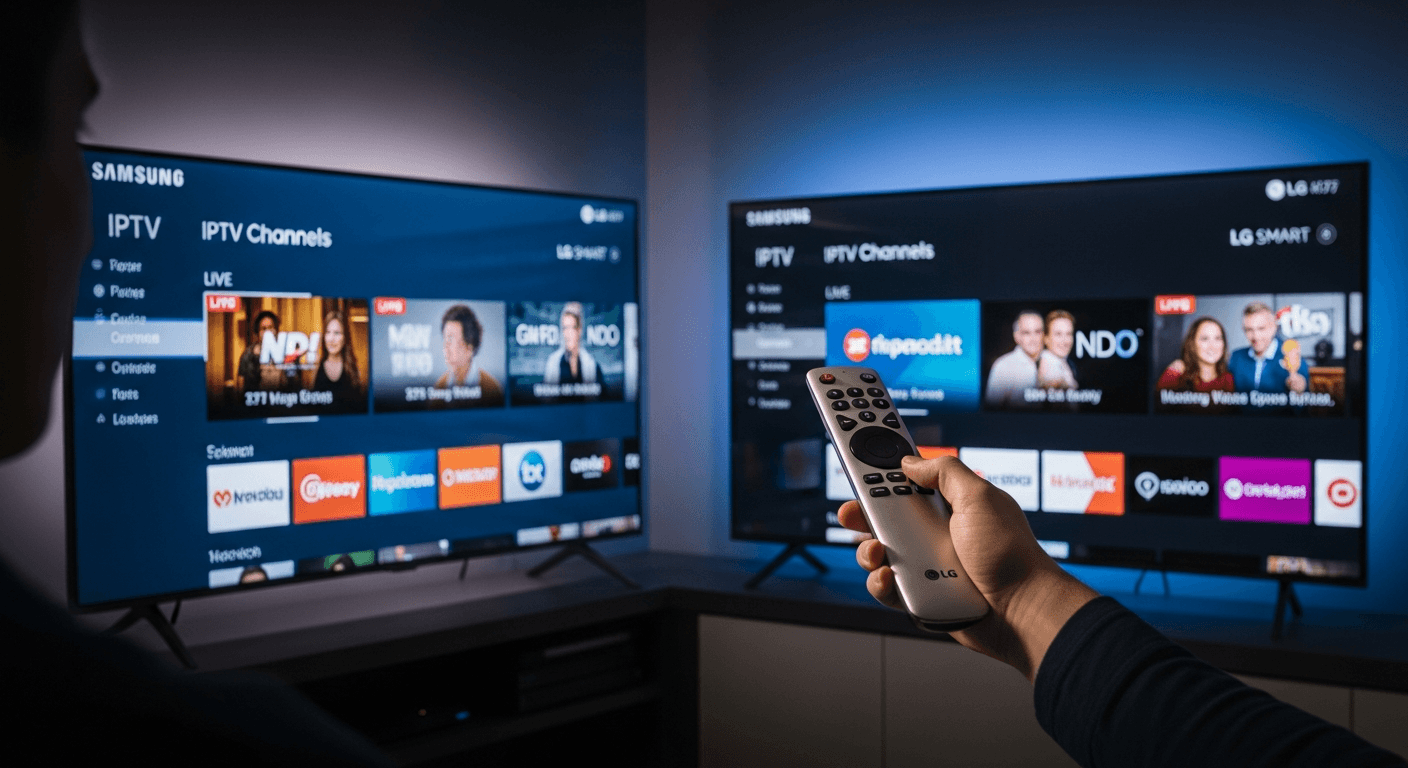
Install IPTV Smarters Pro on Samsung & LG Smart TVs
Installing IPTV Smarters Pro on Samsung and LG Smart TVs in 2026 requires a workaround - neither Tizen nor webOS includes the app in their official stores. But it is absolutely doable. We tested this process hands-on on a Samsung QN85B (Tizen 6.5) and an LG C2 OLED (webOS 22) and have distilled it into the clearest guide available. Whether you are on a Samsung from 2018 or a newer LG OLED, this guide covers both platforms in full. For background on the app itself, check out our full IPTV Smarters Pro review before diving in. The official IPTV Smarters Pro website also lists compatible platforms and download links.
In This Guide
What You Need Before Starting
Before you sideload IPTV Smarters Pro onto your Smart TV, make sure you have everything ready. Missing any of these will stall the process.
- Samsung or LG Smart TV - Samsung Tizen OS 4.0+ (2018 or newer, e.g. NU, RU, TU, QN, S-series) or LG webOS 4.0+ (2018 or newer, including C, G, B, A-series OLEDs and NanoCell models)
- Windows or Mac computer - must be connected to the same Wi-Fi network as your TV
- Active IPTV subscription - with M3U playlist URL or Xtream Codes login (username, password, server URL)
- Samsung users: Tizen Studio (free download from developer.samsung.com) - the IDE used to sideload .wgt app packages onto Tizen TVs
- LG users: LG Developer account (free at webostv.developer.lge.com) and the webOS CLI tools installed on your PC
- IPTV Smarters Pro app package - .wgt file for Samsung Tizen or .ipk file for LG webOS, available on the official IPTV Smarters website
Time required: Samsung setup takes approximately 20-30 minutes on first attempt. LG takes a similar amount of time. Once installed, the app stays on your TV permanently - you will not need to repeat this process.
How to Install IPTV Smarters Pro on Samsung Smart TV
Samsung Smart TVs run Tizen OS, which supports sideloading apps via Developer Mode. This is a built-in feature on all Samsung Smart TVs - no hacking or voiding your warranty. Here is the step-by-step process tested on a Samsung QN85B (Tizen 6.5, 2022 model).
Part 1: Enable Developer Mode on Your Samsung TV
- On your Samsung TV, go to Smart Hub by pressing the Home button on your remote.
- Navigate to the Apps section in Smart Hub.
- On the Apps screen, use your remote to type the number 12345 on the on-screen keypad (or press the numbers directly if your remote has a number pad). A Developer Mode dialog will appear.
- Toggle Developer Mode: ON and enter your PC's local IP address (find it via ipconfig on Windows or System Preferences › Network on Mac). This tells your TV which computer is authorized to push apps.
- Press OK and restart your TV when prompted. After reboot, a "Developer Mode" banner will appear at the top of Smart Hub confirming it is active.
Part 2: Install Tizen Studio and Push the App
- Download and install Tizen Studio from developer.samsung.com. Choose the "IDE + CLI" package. Install takes about 5 minutes.
- Download the IPTV Smarters Pro .wgt file for Tizen from iptvsmarters.com (look under the Smart TV / Tizen download section).
- Open Tizen Studio. Go to Tools › Certificate Manager and create a new Samsung certificate (requires a free Samsung Developer account). This certificate authorizes your app package to run on Tizen.
- In the Tizen Studio menu, select Tools › Device Manager. Click Remote Device Manager and add your TV by entering its IP address (found under TV Settings › General › Network › Network Status).
- Once your TV appears in Device Manager as "Connected," right-click it and select Permit to Install Apps.
- Go to Tools › Package Manager, navigate to the .wgt file you downloaded, and click Install. The progress bar completes in under 30 seconds.
- Press Home on your Samsung remote, go to Apps, scroll to the bottom, and you will find IPTV Smarters Pro listed under "My Apps." Launch it.
How to Install IPTV Smarters Pro on LG Smart TV
LG Smart TVs use webOS, which supports app sideloading through its built-in Developer Mode app. This was tested on an LG C2 OLED (webOS 22) and LG NANO85 (webOS 6). The process is slightly simpler than Samsung because LG provides an official Developer Mode app in its Content Store.
Part 1: Enable Developer Mode on Your LG TV
- On your LG TV, open the LG Content Store (press the Home button and navigate to LG Content Store).
- Search for "Developer Mode" - it is an official LG app published by LG Electronics. Install it.
- Open the Developer Mode app. Sign in with your LG Developer account (create one free at webostv.developer.lge.com if you do not have one).
- Toggle Dev Mode Status: On and note your TV's IP address displayed on-screen. Your TV will restart Developer Mode.
Part 2: Install webOS CLI and Deploy the App
- On your PC, install Node.js (nodejs.org) if you do not have it, then run:
npm install -g @webos-tools/cli - Download the IPTV Smarters Pro .ipk file for webOS from iptvsmarters.com.
- In your terminal, connect to the TV:
ares-setup-device- enter your TV's IP address when prompted and select "Developer" as the device type. - Install the app:
ares-install --device tv IPTVSmartersPro.ipk. Replace "tv" with whatever device name you set in the previous step. Installation completes in under 20 seconds. - On your LG TV, press Home, scroll to the app grid, and find IPTV Smarters Pro in the "My Apps" or "Recent" section. If it is not visible, scroll right to the end of your app list.
- Important note for LG: Developer Mode on LG TVs expires every 50 hours of developer session unless you refresh it in the Developer Mode app. The installed app itself remains permanently - only the developer session expires. Simply re-open the Developer Mode app and click "Extend" to refresh for another 50 hours if needed.
If you prefer to skip sideloading entirely, both Samsung and LG support Smart IPTV - a dedicated IPTV player available directly in both the Samsung Tizen Store and LG Content Store. It supports M3U and Xtream Codes just like Smarters Pro, though the interface is more basic. See our TiviMate vs IPTV Smarters Pro comparison for a full breakdown of IPTV player options.
How to Add Your IPTV Service in Smarters Pro
Once IPTV Smarters Pro is open on your Samsung or LG TV, adding your subscription takes under 2 minutes. The app supports three login methods.
Option A: Xtream Codes API (Most Common)
- Open IPTV Smarters Pro and select Add New User.
- Choose Login with Xtream Codes API.
- Enter your provider's Username, Password, and Server URL (all provided in your subscription confirmation email).
- Tap Add User. Smarters Pro loads your channel list, VOD, and EPG automatically - typically within 30-60 seconds depending on channel count.
Option B: M3U URL
- Select Login with M3U URL from the Add User screen.
- Paste your M3U playlist URL into the M3U URL field and give the profile a name.
- Optionally add an EPG (XMLTV) URL in the EPG field for program guide data.
- Tap Add User to load your channels.
Troubleshooting Common Issues
Samsung: "12345 keypad" does not open Developer Mode dialog
This happens on older Samsung firmwares or if you are not in the correct Apps screen. Make sure you navigate to the Apps section in Smart Hub first (not just the Home screen). The keypad input must happen while you are inside the Apps section, not at the top-level Smart Hub. If it still does not work, try using a Samsung SmartThings app as a remote and type 12345 that way.
Tizen Studio shows "Connection Failed" when connecting to TV
Confirm your PC and TV are on the same Wi-Fi network (not one on 2.4 GHz and the other on 5 GHz if they are separate SSIDs). Also verify you entered your PC's correct local IP in the Developer Mode dialog - it must match. Check that Windows Firewall or macOS firewall is not blocking Tizen Studio on port 26101.
LG: ares-install returns "Device not found"
This almost always means Developer Mode session has expired (50-hour limit). Re-open the Developer Mode app on your LG TV and toggle it back on. Then re-run ares-setup-device if needed and retry the install command. Also double-check the TV's IP has not changed - assign a static IP in your router for the TV to avoid this.
Channels load but streams buffer or will not play
Smart TV Wi-Fi can be inconsistent. Connect your TV via Ethernet for a significant improvement in stream stability - most Samsung and LG TVs have an RJ45 port on the back. If Ethernet is not possible, position the router closer or use a Wi-Fi 6 router. For more in-depth fixes, see our guide on how to fix IPTV buffering on any device. You can also check the official LG webOS support page for network troubleshooting steps specific to LG models.
App disappears from Smart Hub after TV firmware update
Firmware updates on both Samsung and LG can sometimes wipe sideloaded apps. If IPTV Smarters Pro disappears after a TV update, simply repeat the sideload steps - Developer Mode remains enabled after updates, so you only need to re-run the Tizen Studio install or ares-install command. The process takes under 5 minutes the second time.
✅ Pros
- Works on most 2018+ Samsung and LG Smart TVs
- Full Xtream Codes + M3U + Stalker support
- Built-in EPG, catch-up, and VOD sections
- No need for an extra streaming stick once installed
- Developer Mode does not void Samsung warranty
❌ Cons
- Requires a PC and 20-30 mins of setup
- LG Developer Mode expires every 50 hours
- Firmware updates can remove the sideloaded app
- Not available via official app stores
- Older Tizen/webOS versions (pre-2018) not supported
Smart 4K is the most stable IPTV - watch every match without buffering
3M +1 FREE • 6M +2 FREE • 12M +3 FREE
Offer valid for new subscribers and single-device plans only.